How to Properly Configure Google Consent Mode 2 Using a WordPress Plugin
Your website is live, but are you unsure who’s visiting and what content resonates most? Google Tag Manager and Google Analytics are powerful tools for tracking user behavior and identifying website weak points based on real data.
Our team has prepared a comprehensive guide on properly setting up Google Tag Manager and Google Analytics. Watch the video or follow the instructions below.
Creating Your GTM (Google Tag Manager) Container
Follow these steps to create your GTM container:
- Navigate to Google Tag Manager: Go to tagmanager.google.com
- Create a new account: If you don’t have an account yet, create one. Fill in basic information including account name, country, and container name.
- Enter your website URL: Provide your website’s URL address.
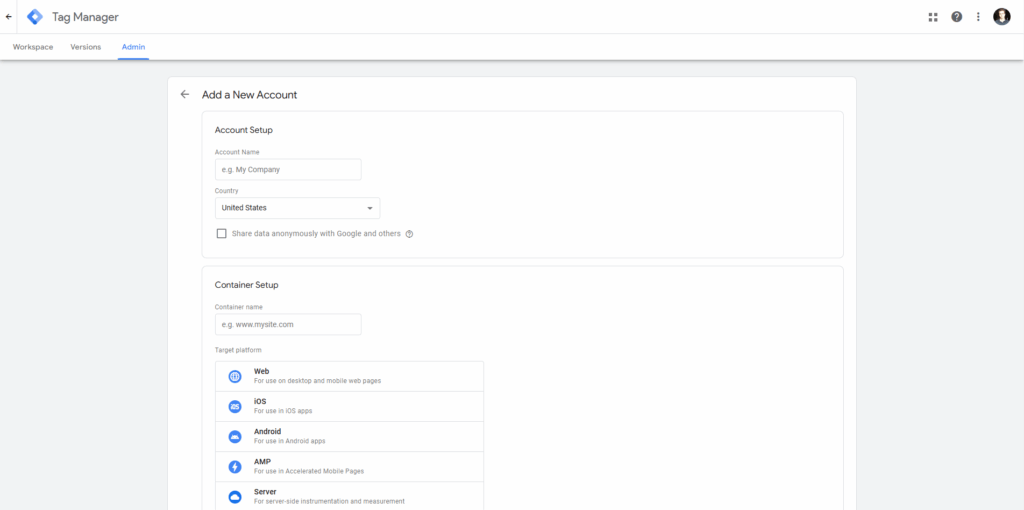
4. Select container type: Choose whether you need a container for Web, iOS, or Android. For this guide, select “Web”.
5. Create container: Click the button to create your container.
This creates your GTM container and prepares it for further configuration and website integration.
Setting Up Google Consent Mode in Google Tag Manager
To configure Google Consent Mode in GTM, follow these steps:
- Activate Consent Overview:
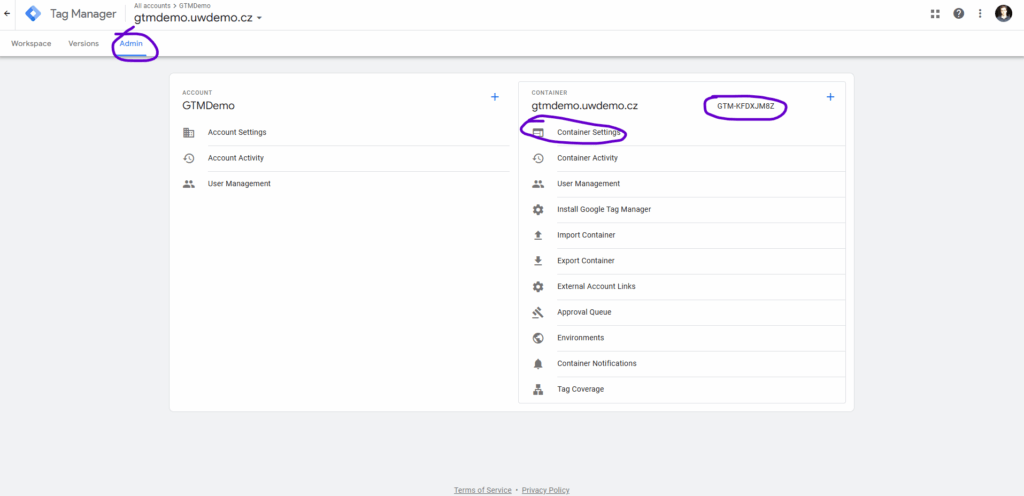
- Navigate to the “Admin” section in GTM
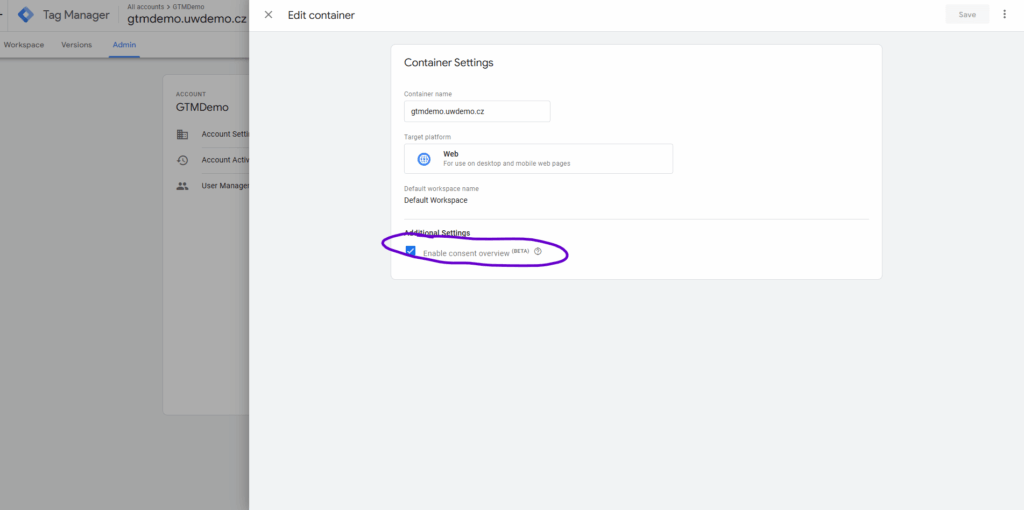
- Open “Container Settings” and locate “Additional Settings”
7. Enable “Consent Overview”: Check this box to enable your container to work with new consent-related features and parameters.
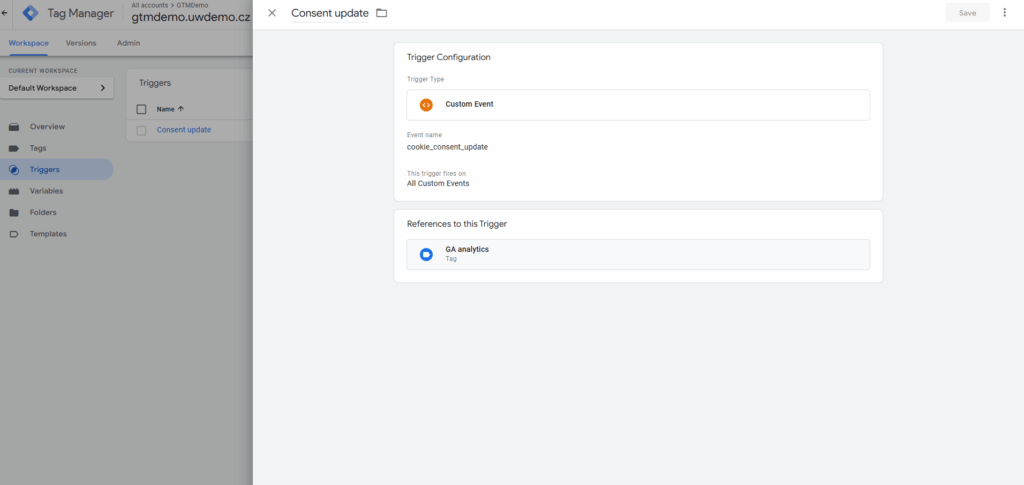
8. Create Consent Update Trigger: Create a new “Custom Event” trigger named cookie_consent_update. This trigger will respond to events when users change their cookie consent preferences.
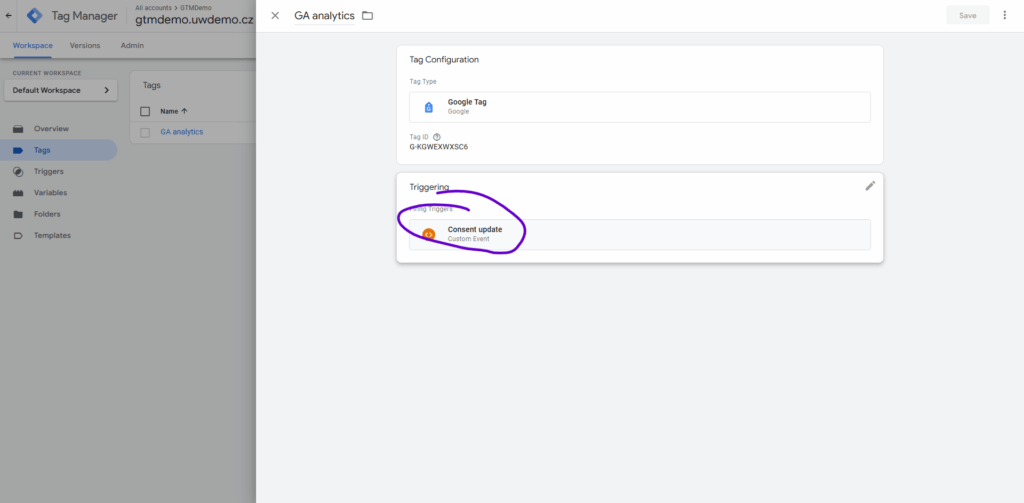
9. Configure Google Analytics Tag: When creating your Google Analytics tag in GTM, ensure it’s configured to fire based on the trigger you created. The tag should only fire when users consent to third-party cookies.
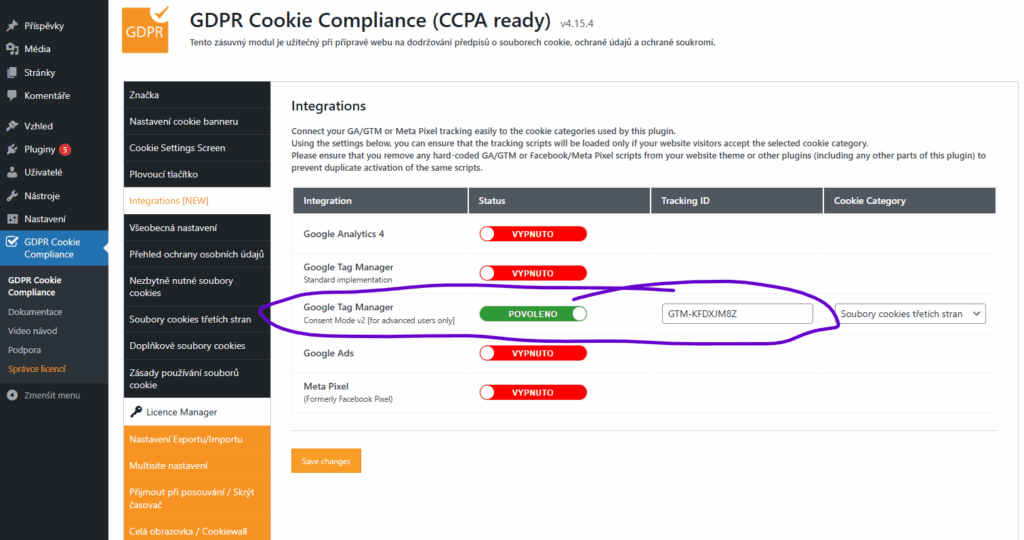
10. Implement Cookie Management Plugin: We recommend using the GDPR Cookie Compliance plugin, which enables cookie management and GTM integration. Ensure your container ID is properly configured in this plugin.
11. Testing and Verification: After setup, use browser extensions like Data Layer Checker to verify that consent-related events function correctly and GTM properly responds to user consent changes.
Following these steps ensures your Google Consent Mode is properly configured in GTM and your tracking complies with GDPR requirements.
Need Help with Consent Plugin Setup?
If you need assistance setting up GTM and GA, don’t hesitate to reach out through our contact form. We can help not only with analytics tracking setup but also with any other website challenges you’re facing.
Tags: analytics, GDPR, Google Analytics, plugins, website management, WordPress